
For members · English
Squorli day to day
This page is for everybody who talks on a Squorli server – not for the people who run it. It covers signing in and accounts, your own settings, voice channels with camera and screen sharing, the away status, the game display, radio and the desktop app. Setting a server up is explained in the administrator guide.
Signing in: Squorli account or server account
Your identity is a cryptographic key; your password encrypts it on your device so you can fetch it on new devices. Nobody else knows the password, so nobody can reset it either. Without an account you get onto no server any more; there are two kinds.
With an account at directory.squorli.com the same key works on every connected server. It brings a handle such as @name, a backup of your key encrypted with your password for new devices, an authenticator and recovery codes as a second factor, your profile picture, your synchronized settings, and friends and end-to-end encrypted direct messages across servers. Where the Directory's e-mail feature is switched on, you can add and confirm an address on the account page: it receives notices about key retrievals, and an e-mailed code serves as an alternative second factor.
A server account works on one server only and is called ~name. Servers without a directory know only these accounts; servers with a directory offer them when their owner allows it. A server account signs in with name and password on other devices too and has a profile picture of its own; it has no friends and no direct messages for now. When you sign in, the sign in front of the name decides: @name for the Squorli account, ~name for the server account. In the desktop app you can use both at once: your Squorli account, and a server account on single servers.
Every device you sign in on gets a device key of its own and then appears in your list of devices; at most ten devices can be signed in at once. At the eleventh, the sign-in shows the other ten after password and code, and you pick the one that is signed out for it. “Sign out” signs the device out and removes your key from it; name and password bring it back at any time. For an account without a password the key exists on that device only – the app warns you before it removes it.
On a new server you start as a guest: you see channels and can join voice. Writing, attachments, camera and screen sharing come with the member role, which somebody assigns to you in Administration.
Your settings and account
The gear beside your name opens the settings for profile, view, voice and audio, camera, sounds, shortcuts, devices and account. Under “Voice and audio” you pick your microphone and output device and can test your microphone: you hear yourself, and nothing of that test reaches a voice channel.
With a Directory account, your language, the speaking mode including push-to-talk, camera quality and background blur, notification sounds, the option to show your own picture in speaker view and the order of your server rail are kept in the account and are ready on every device. They are stored encrypted: your client encrypts them on your device with a key derived from your identity before they go to the Directory. So only somebody with your key can read them – you on your devices, not the Directory's operator. The settings say so with the line “Saved encrypted in your directory account”. An older client, such as another server may still ship, can then no longer save the account's settings; it keeps working with the device's values and reports a save error. Without an account the same settings stay local. Devices always remain a per-browser choice: microphone, camera, output device, your radio volume and your personal radio-off switch belong to the machine you are sitting at.
You arrange the server rail on the left by drag and drop, or with “Move up” and “Move down” in a server's context menu. In your profile you set a global display name and, if you like, a different name for this one server. You upload a profile picture there with a crop and zoom, or on the Directory's account page; it replaces your initials everywhere and, like your handle, is publicly visible.
Under “Devices” you see where you are signed in with your account, when each device was signed in and last used, and which one you are sitting at. You sign another device out there, one by one or all at once; the app asks for your password and, if you set up an authenticator, for a code. The device that was signed out falls back to the sign-in at once, loses your key and gets back in only with name, password and second factor – on every server that runs a current version of Squorli Server. A server with an older version knows no devices and still lets in whoever holds your key. A device that was not used for 90 days is signed out by itself, as long as your account has a password. For a server account the same holds for that one server. You find the same list on the Directory's account page.
Under “Sounds” there is also a sound for new direct messages and for messages that mention you; it stays silent when you have that conversation open anyway. At the same moment a notification of the system can appear; clicking it opens the conversation or the channel. In the desktop app it is on; in a browser you switch it on under “Sounds”, and the browser then asks once for permission (not on phones). You can keep the message text out of the notification, for a screen others can see. This choice applies to the device you sit at.
Writing, reading, sharing
Messages understand Markdown: bold and italic, lists and task lists, tables, quotes and code blocks with a copy button. You pick emoji from the picker, with :shortcodes: or as emoticons such as :); the font for them comes from your own server, so everybody sees the same thing. @name mentions somebody – they see the message highlighted and a counter on the channel and the server. You can edit and delete your own messages, and attach files with the button, by dragging or by pasting.
When you link a page, a preview with title, description and picture appears below it. The server fetches that preview, not your browser and not the browsers of the people reading: nobody in the channel reveals their address to the linked site, and the preview picture is stored on your server. YouTube links turn into a player you can watch inside the message. Whoever wrote a message removes its preview with the × in the preview's top right corner; whoever wants none in the first place puts the address in angle brackets: <https://example.org>. In direct messages between friends everything stays end-to-end encrypted – there the sending browser builds the preview and the picture is stored encrypted. If you want no previews in direct messages, switch them off under Settings > View: then no link is looked up, your messages go out without a preview, and you do not see previews in messages you receive. The choice follows your account, encrypted.
Some channels you do not see, or may not write in: a lock in front of a voice channel means it is private. Other people's private channels never appear in your list at all. In a channel with slowmode, the composer visibly waits until you may write again.
Reporting
With the small flag on somebody else’s message or “Report” in a member’s menu you report something to this server’s moderators: pick a reason (spam, harassment, hate, sexual content, violence, illegal content or something else), describe it briefly if you like, send. The moderators see a copy of the message as it was at the moment of the report – even if it is deleted afterwards. The reported person does not learn who reported. If a message of yours is removed after a report, you get a notice with the reason and the channel, without a name. If the flag is missing, the server does not know reporting yet.
A direct message you report with the same flag to the Directory’s operator, because your server never sees it. Since direct messages are end-to-end encrypted, the Directory cannot read them itself: your client sends the reported message along in plain text and, if you leave the checkbox ticked, up to 20 preceding messages of the conversation as context. The operator gets to see nothing more, and the copy is deleted again once the report is handled. Afterwards you can block the person as usual.
Blocking
Somebody who bothers you is blocked with “Block” in a member’s menu or in their small profile; after a report the dialog offers the same button, and for friends it also sits in the friends list and in the head of the conversation. Blocking is your own view, not moderation: the server removes nobody because of it, and the blocked person learns nothing of it.
- Their messages show folded as “Blocked message from …”. “Show” opens a single one for you only, the eye in the actions folds it again.
- Their messages mark no channel unread, and their mentions do not count.
- In a voice channel you do not hear them – neither their voice nor the sound of their screen share, whatever their volume slider says. Their tile stays, and their menu says “Blocked: silent for you”.
- With a Squorli account you block them at the Directory as well: a friendship ends, and their friend requests no longer reach you.
What is blocked is the person’s identity, not their name on one server – so the block holds on every server where they are. With a Squorli account your list is stored encrypted in your account settings and holds on every device you are signed in on; no server learns whom you block, and the Directory only learns whom you block with your Squorli account, so it can refuse their requests. With a server account the list belongs to that account on this device. Under Settings > Blocked you see everybody you have blocked and lift a block again. If there is no “Block” entry, your server still serves an older version of the client.
Voice channels
One click on a voice channel connects you. The voice dock at the bottom left shows the status, your microphone level, mute, deafen and hanging up. Whether you speak by voice activation or with push-to-talk is set under “Voice and audio”; in a browser the push-to-talk key only works while the Squorli window has the focus – the desktop app can read it across the system.
A channel can have a user limit, or hold you: in a holding channel (marked with a pin) you stay until somebody with the permission to move members takes you out; hanging up is then disabled, with the reason. A channel can also allow no camera, no screen sharing or no radio – then those buttons are missing. If somebody with the necessary permission moves you to another channel, your client follows automatically.
Cameras and screen shares
Other people's cameras appear on the stage by themselves. A screen share is never shown to anybody unasked: its tile says “… is sharing their screen”, and only “Watch” subscribes you to it – with its audio, if the sender shares any; the volume is on the tile. You can switch off any stream – camera or screen – for yourself with the eye icon on the tile or by right-clicking; a stream you switched off is not received and costs no bandwidth. If somebody restarts their stream, the initial state applies again.
While at least one video is running, the button beside “Speaker | Tiles” hides every participant without video in tile view; that choice is not saved. Single tiles can be moved into a window of their own. Screen audio is carried by Chromium browsers and the desktop app; Firefox and Safari share the picture only.
Away status and AFK channel
After ten minutes without input and without speaking you count as away. That time is the same on every server. Others see it as a yellow dot on your avatar and a moon in your row, in the member list, in direct messages and, with a Directory account, in the friends list. Speaking counts as activity: whoever plays and talks while doing so stays present. A browser only notices input in the Squorli window by itself; in Chrome, Edge and other Chromium browsers you can allow input anywhere in the system and the screen lock to count, under Settings > View. The browser asks once for permission, and the choice applies to that browser only. The desktop app on Windows counts input anywhere in the system and the screen lock without that question, and input on controllers and joysticks too – even while a game is in the foreground and the app is minimized or in the tray. A video playing in another program also keeps you present, but for at most four hours after your last input; whoever falls asleep in front of a film is moved after all. Nobody learns what you are doing: only whether you are present or away is sent.
If the server has an AFK channel, you are moved there from your voice channel at that moment. Microphone and audio are always off in it, and there is no camera, screen sharing or radio – the media server enforces that, not just the interface. Once you are back, the button “Back to …” in the voice dock returns you to your channel; it never happens by itself, so that no microphone is accidentally open again. Nobody is moved out of a channel while a YouTube video or Twitch stream is playing there.
Game display
The desktop app can show others which game you are playing: its icon and name then appear under your name in the member list and in the friends list. The display is off until you switch it on, under Settings > Games with “Show which game I am playing”. At first only your friends see it; with “Show it to the members of my servers too” every server you are signed in on learns it as well. Both switches belong to your account and apply on every computer with the app. Anybody can see the display, in the browser too; only the app can report a game.
Detected are games that Steam, Epic Games, GOG or the Xbox app have installed on this computer; Squorli ignores other programs, but you can add your own under “Add program”. A game counts once its window has been in the foreground, and until it is closed. Only the running game is sent – the launcher's id and the name – never which games are installed; of an added program only the name goes out, never its path. The icon and name others see come from the Directory's game library; a game it does not know appears with the reported name and a gamepad symbol.
In the list of installed games you untick single games: a game without a tick is never shown, to anybody. With a Directory account this hide list is stored encrypted in your account like your other settings and applies on every computer with the app – without an account only on this computer. Which games are installed and which programs you added always stays on the computer. The game display and the away status are independent of each other: what keeps you present is what you do, not what is running.
Web radio, Twitch and YouTube
With the radio button in a voice channel, members who have the permission pick a station from the server's list or type an address of their own: direct audio streams, .m3u and .pls playlists, Twitch channels, and YouTube videos, live streams and playlists. For YouTube videos, play, pause and seeking apply to everybody in the channel; live streams are each listener's own. A playlist (public or unlisted, at most 200 videos) plays video after video for everybody at once, and whoever may control the radio skips back and forth in the radio menu. When a video ends, the radio switches itself off; the same happens about a minute after a Twitch stream ends, and after two minutes in an empty channel.
Everybody sets their own volume or turns the radio off just for themselves – which ends your connection to the provider and removes the video player too. If something is playing while your radio is off, a tile tells you; from there you switch it back on at the volume you want. Twitch and YouTube appear in their official players and can be moved into a window of their own, which also helps because Twitch pauses embedded players in hidden tabs. Videos whose owner forbids embedding cannot be played.
The media travel straight from the provider to your browser. The provider sees your IP address, Twitch may set its own cookies, and YouTube runs in its privacy-enhanced mode. Your chat server only resolves playlists, reads track information while the radio plays and asks YouTube for the video title.
Vote kick: when nobody can moderate
If at least three people sit in a voice channel and none of them may remove anybody, you can decide together. Through a person's context menu – in the member list, in the sidebar or on their tile – you start “Start vote kick”. As soon as somebody with moderation permissions is in the channel, the entry is not offered: then that person moderates.
- Whoever starts has voted yes by doing so. The person it is about does not vote; everybody else in the channel gets the question as a dialog.
- The vote runs for a minute, but ends earlier once everybody has voted. At least half of everybody who sat in the channel when it started must have voted for the result to count.
- On a tie the person stays. If the vote passes, they leave the channel and cannot re-enter it for 15 minutes – every other channel stays open to them.
- Whoever joins later does not vote. Nobody learns how anybody voted; only the tallies are visible.
The tally sits at the top of the member list: a countdown, a bar of yes and no, how many votes are still missing for the quorum, and your two buttons. The result stays for 30 seconds afterwards. In narrow windows you only see the bar once you open the member list – the question itself reaches you either way.
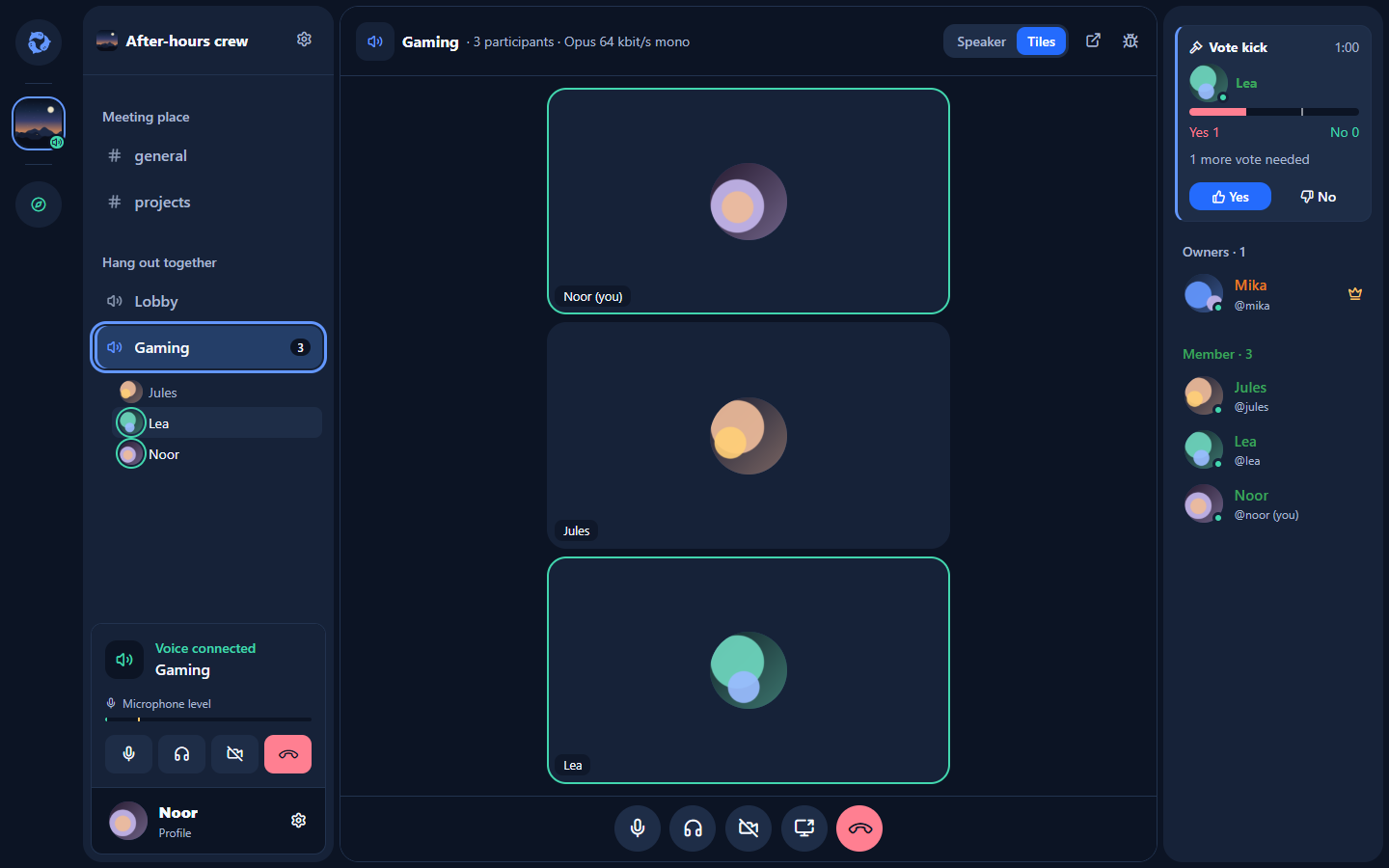
A vote kick is deliberately weak: it applies to that one voice channel and only for 15 minutes. Lasting decisions – roles, channel permissions, bans – remain with Administration. Administrators can switch the feature off per channel.
Desktop app
Squorli runs entirely in the browser. The desktop app for Windows and Linux is the same client in a window of its own and adds a few things: it shows unread mentions and direct messages as a number on its taskbar icon, can start with the system under “View”, and lets you choose a separate output device for the sound of Twitch and YouTube players. On Windows it also counts controllers and playing videos for the away status and can show others which game you are playing.
Under “Shortcuts” you also set global keys for “mute microphone” and “deafen” that work while a game is in the foreground. Such keys are taken from other programs while the app runs; that is why keys without Ctrl, Alt, Shift or the Windows key are only allowed as function, numpad or media keys – exactly what a Stream Deck or G Hub sends. The push-to-talk key works across the system in the app as well. The app also understands links of the form squorli://control/…, which switch mute and deafen from any tool you like. Copy them under “Shortcuts”: the links that can switch the microphone on carry a key of your installation, so that no web page can open your microphone.
As of 27 September 2026. Questions about running a server are answered by the administrator guide, questions about setting one up by the installation guide.