
For administrators · English
Administer your server
Build a meeting place your community understands. These are all the tasks after installation, illustrated with the real interface running on a local demo instance.
Names, messages and members in these images are fictional. The demo has no Directory connection, so the corresponding options are disabled there.
The first steps
The server is running and you are signed in – this order has proven itself:
- Set the server name and icon so the server is recognizable in the rail.
- Create categories and the first text and voice channels.
- Review the roles: new members are guests and deliberately may do little. Decide what the member role may do.
- Create an invite link or switch on open joining – after the first sign-in the server is closed.
- Test from a second browser profile or device: join a voice channel, switch on microphone and camera, share your screen.
What your members meet afterwards is explained in the member guide. Feel free to point them at it.
Access and owners
Open Administration using the gear beside the server name. Available sections depend on your role permissions. Owners have all permissions and can appoint additional owners through the member menu. The founding owner has additional protection.
Before the first login: reserve owner access.
Server and joining
Under Server, set the name and icon. Open joining, server accounts (~name) next to Squorli accounts and public listing are separate decisions. Directory registration alone does not make the server publicly discoverable or open to everyone. Every sign-in needs an account; without a directory server accounts are always allowed, and the server configuration (LOCAL_ACCOUNTS) can fix the switch.
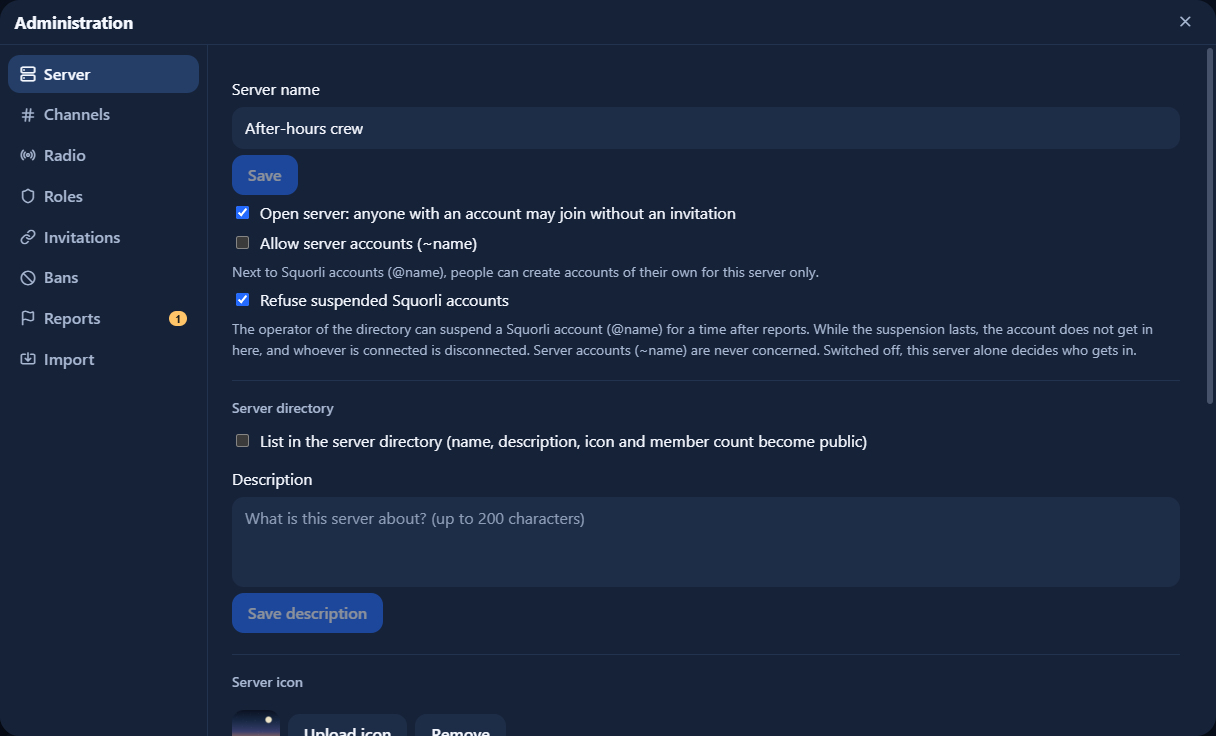
Under Server you also switch the status API: it publishes channels and presence as JSON, for example for a widget on your website. It is off by default; you decide whether it needs a key or is public, and whose view it answers with – private channels stay out of it either way. Modes, response format and example widget.
Under Server you also find “Check the connection”: the server checks its own address (domain, certificate, WebSocket through the proxy, /rtc to LiveKit, media ports, Directory), a configured Directory checks it from outside, and your browser makes a real media connection and tells whether it runs over UDP, over TCP only, or not at all. Every message names the likely cause. On the server itself the same check is called squorli doctor. More in the installation guide.
Channels and categories
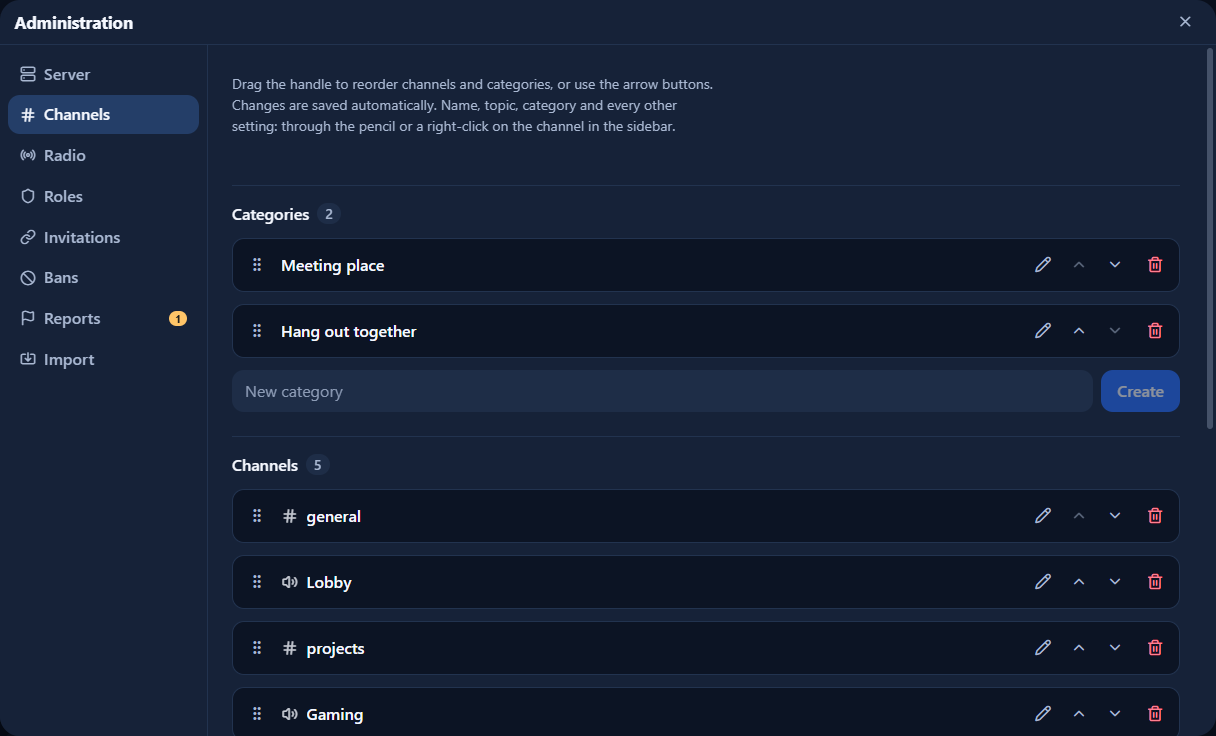
Under Channels you create categories, text channels and voice channels, sort them by dragging their handle or with the arrow buttons, and delete them. The new order saves immediately. Everything else – name, topic, category, bitrate and stereo – lives in the channel dialog, which you open with the pencil in the row or by right-clicking the channel in the sidebar.
Deletion requires confirmation; check whether a text channel’s history is still needed before removing it. The channel dialog also holds a user limit for voice channels, a slowmode for text channels, the notification default, and whether radio, camera and screen sharing are allowed in that channel.
At the end of this section, with the permission to manage the server, you choose the AFK channel: a voice channel that away members are moved to from other voice channels. A member counts as away after ten minutes without input and without speaking; this time is fixed and the same on every server, because friends see the state through the Directory too. Nobody can send or hear anything in the AFK channel; the media server enforces this, not just the interface. There is no camera, screen sharing or radio in it. Nobody is moved out of a channel while a YouTube video or Twitch stream is playing there. The AFK channel may be neither private nor holding. How members experience the away status.
Channel permissions and private channels
Every channel and every category can carry permissions of its own. In the channel dialog under Permissions you add entries for roles or single members; each permission there is allowed, denied or “inherited”. Inherited means: whatever the category says, and otherwise the server-wide role. A channel that deviates from its category is marked by the coloured edge of its row; “Use the category’s permissions” resets it.
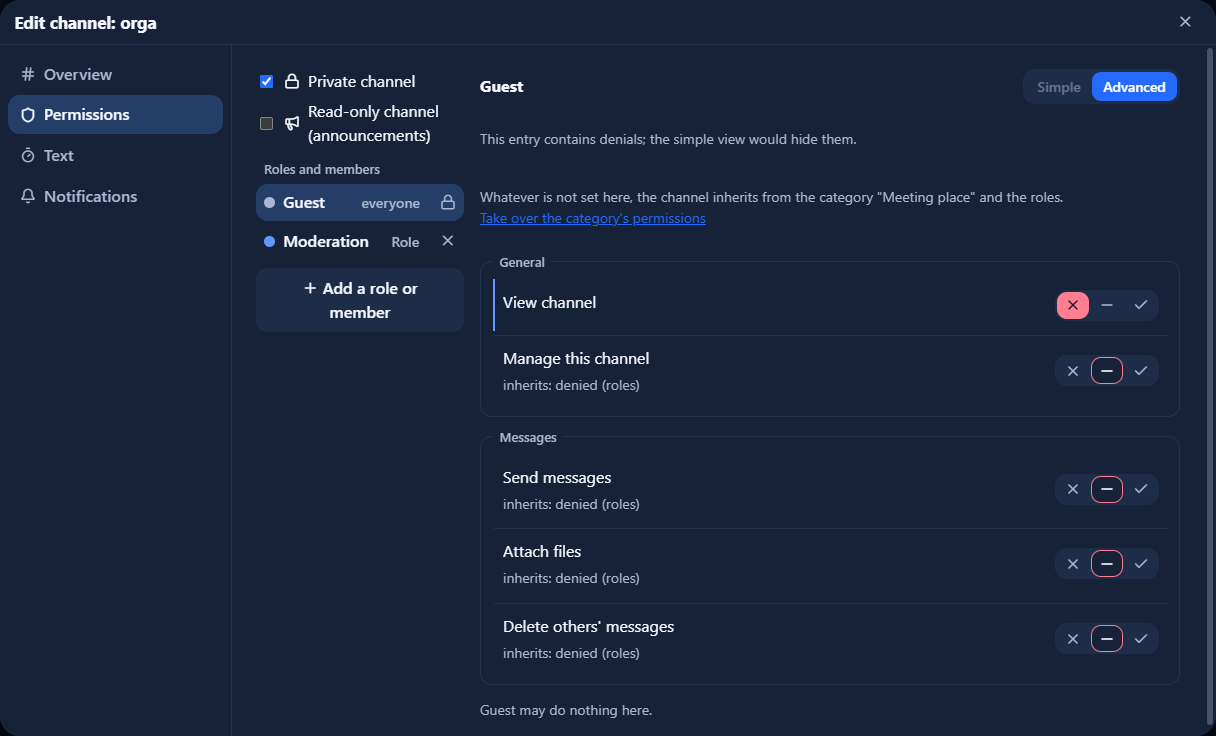
- “Private” is the shortcut for denying the default role the right to view. A private channel is not transmitted to other clients at all: no name, no messages, no presence. It carries a lock, and whoever should see it gets an entry of their own.
- A read-only channel denies the default role writing and attachments – useful for announcements.
- A holding (“sticky”) voice channel lets nobody move to another voice channel on their own. Only a member with the permission “Move members” takes somebody out. You decide whether the hold outlives a restart and whether the other voice channels are hidden meanwhile; the permission “Bypass holding” exempts single roles or people. An honest limit: nobody can stop somebody from closing their browser – holding means “no other voice channel”, not “no leaving”.
Only channel-scoped permissions can be changed here. Administrator, server management, role management, kicking, banning and invitations stay server-wide. Owners and administrators see every channel; the channel management permission alone does not grant that. You cannot take your own access to a channel away – the server refuses such a list. A Discord import carries the template’s permissions over as far as they can be mapped.
Roles and permissions
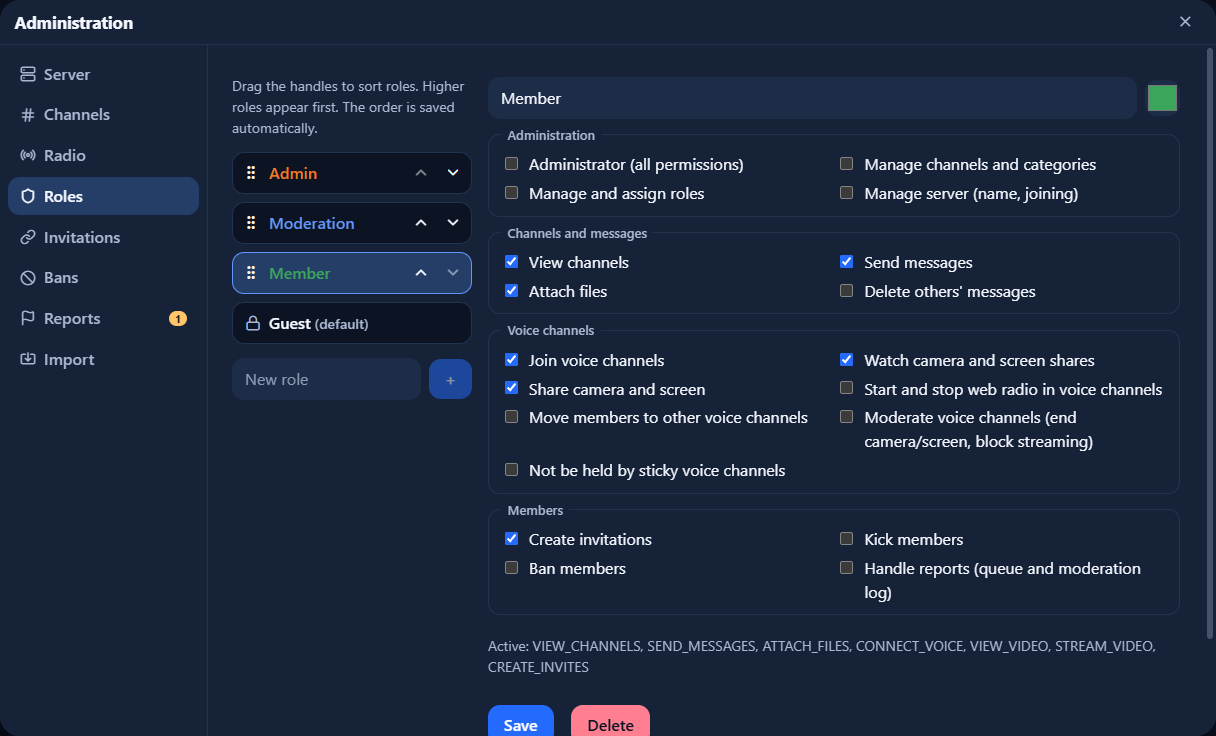
The role list on the left shows the hierarchy: higher in the list means higher rank. Drag the handle or use the arrows beside the name. The default role stays fixed; without owner status, you can only edit roles below your highest role. Save names, colors and permissions with Save, separately from the immediately saved order.
New members receive guest permissions. The member role enables messaging, attachments, camera and screen sharing, among other capabilities. Without the permission “Watch camera and screen shares” somebody receives no streams at all – guest roles do not have it. Grant Administrator deliberately: it includes every permission. Assign roles through the member menu.
Invitations and moderation
Under Invites, create links with an expiry and optional usage limit, and revoke invitations you no longer need. With the appropriate permissions, the member menu lets you assign roles, kick or ban members, and move people between voice channels. Manage bans in the Bans section. Moderation also respects the role hierarchy.
Moving is a permission of its own (“Move members”) and counts in the destination channel: whoever holds it there may also put somebody into a channel they themselves could neither see nor enter. A user limit does not stop a move, and somebody who was moved stays there even when permissions change.
When nobody with moderation permissions is in a voice channel, at least three people present can help themselves with a vote kick: a minute of voting, half of them must vote, and a successful vote locks the member out of that one channel for 15 minutes. As soon as somebody with the permission to move or kick sits in the channel, there is no vote. You can switch it off per channel in the channel dialog; it is on by default. How a vote runs.
Reports and the moderation log
Members can report messages and members. A report goes to everybody with the permission “Handle reports” – owners and administrators always have it, and the update to this version grants it to every role that may delete other people’s messages. Open reports show as an amber counter on the server in the rail and on the Reports tab in Administration; whoever was offline sees the count at the next sign-in.
Every report names the reason (spam, harassment, hate, sexual content, violence, illegal content or something else), an optional text and who reported, and it holds a copy of what was reported as it was at that moment: text, author, attachments and the texts of the link previews. So a report stays reviewable even when the message has been deleted since or the person has left the server. The copy is kept for 30 days after closing, at most 90 days for open reports; after that only the entry remains, so repeated reports about the same person keep counting. The copy’s attachments are stored apart from ordinary attachments and are reachable through the report only.
Every action closes the report with its result: delete the message, delete the person’s messages of the last hour, 24 hours or 7 days, kick, ban, or close without action. When banning you can delete the same time spans along with it, also outside the reports through the member menu; kick and ban follow the permissions and the role hierarchy as always. The reported person never learns who reported. When something of theirs is removed because of a report, they get a notice with the reason and the channel – only while they are online; the server keeps no notices.
Below the queue sits the moderation log: who did what and when – deleted somebody else’s message, kicked, banned, set or lifted a channel block, closed a report – without message contents and with names kept as text, so a line stays readable after an account is gone. Entries are removed after 180 days. Own deletions and a vote kick’s block are not in it.
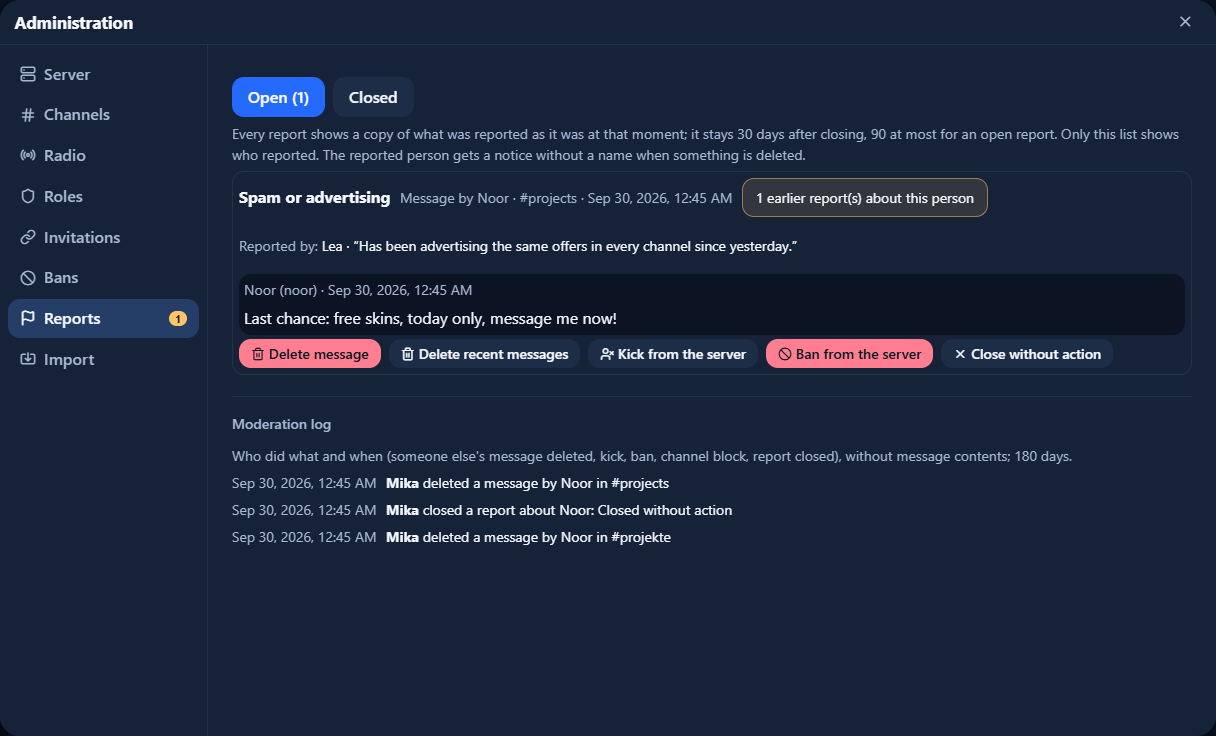
Direct messages do not pass through your server: they are reported to the Directory’s operator, with the plain text only the reporting person has. How members report.
Blocking, on the other hand, is not moderation: a member hides another person for themselves only – folded messages, silence in a voice channel. The server learns nothing of it, it shows up nowhere in Administration, and nobody is removed by it; whoever wants a person off the server reports them. How members block.
Radio and video sources
Under Radio, manage stations and automatic shutdown in empty voice channels. Members with permission to start and stop web radio can also select custom stream, Twitch or YouTube addresses for the channel. Browsers connect to that provider, so grant this permission deliberately. Everyone can adjust their own volume or turn playback off for themselves, and the channel dialog can disable radio for single channels entirely.
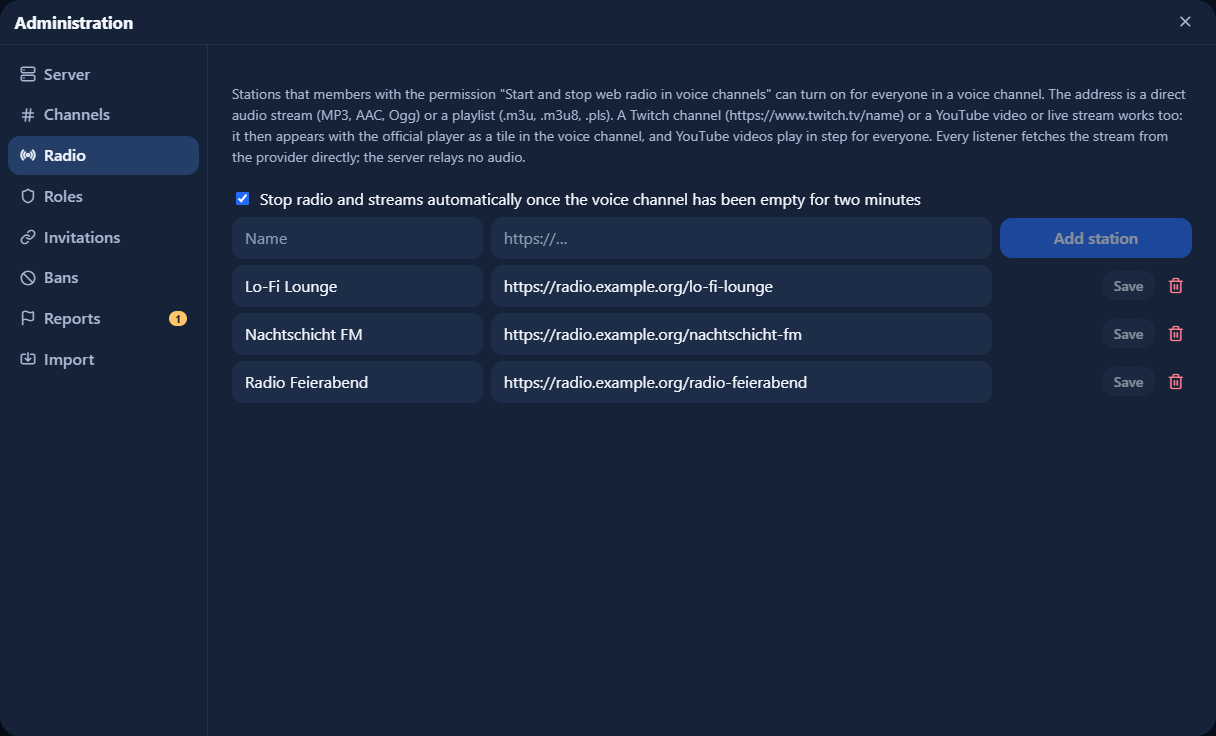
Source types, shared YouTube playback and browser limitations in detail.
Operations and updates
Perform updates and backups on the host. Back up the database, attachments and private configuration together. A new container image is not a backup; switching images does not reverse database migrations.
A few decisions are not in Administration but in the .env file on the host: the attachment size limit, link previews (the server fetches them so readers never reveal their address to the linked site; they can be switched off) and whether a Directory account is required.